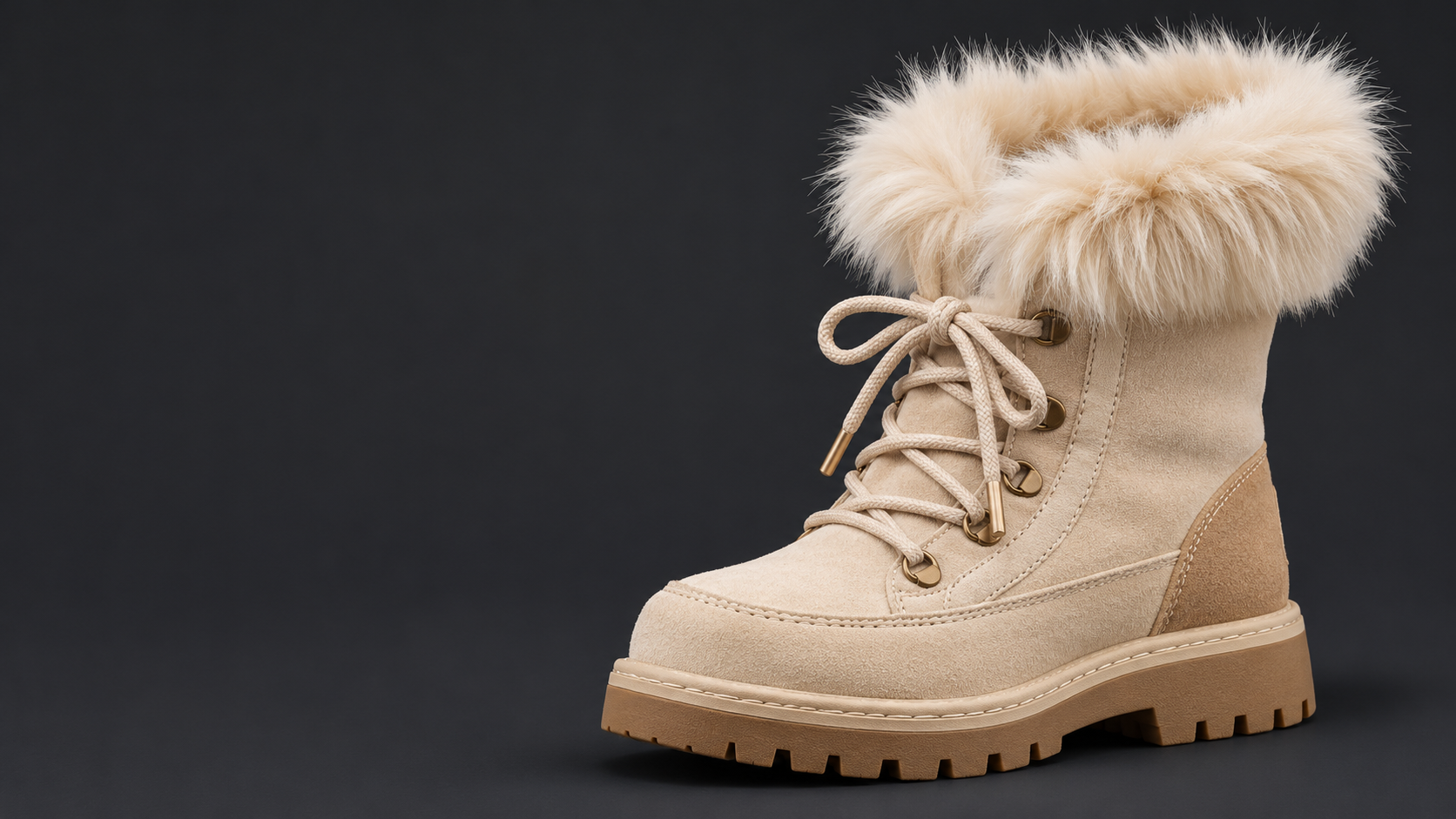
A transparent PNG stores the subject separately from the background, but the right export settings and a quick file check matter if you want the cutout to stay clean.
PNG, JPG, and WebP: what transparency means
Transparency is stored as an alpha channel: pixel data that describes how opaque each pixel is. PNG supports this channel and is a common choice for cutouts. JPEG does not preserve transparency, so a transparent image exported as JPEG will be flattened against a solid color. WebP can support transparency, but confirm that the apps and platforms in your workflow accept it.
The file extension alone is not a quality guarantee. The source image, the cutout edge, export settings, and later resizing all affect the result. Keep an untouched copy of the original in case you need to make a new selection.
A simple workflow for a transparent cutout
- Start with the original image and isolate the product with a suitable selection, mask, or editing service.
- Review the edge and correct any leftover background or missing product detail.
- Export as PNG with transparency enabled, then open the saved file to confirm it worked.
Avoid converting the finished cutout to JPEG if you need the background to remain transparent. If a website needs a JPEG, create a separate version with the desired background color.
For a product cutout prepared by hand, request manual background removal. Specify a transparent PNG and any editable Photoshop path or layered PSD you need.
Four reasons your PNG may not look transparent
- The viewer uses a white preview. Some apps show transparent areas as white instead of using a checkerboard. Place the image over a colored layer to check.
- The file was exported as JPEG. JPEG replaces transparency with a solid background. Check the actual downloaded format.
- The export was flattened. Some workflows merge layers or apply a background color before saving. Re-export with transparency enabled.
- The edge blends into the preview. Soft, partly transparent pixels can be hard to see over white. Test the cutout over both dark and light colors.
How to verify transparency and edge quality
Open the file in an editor that displays transparency, or place it over a colored layer. Look around the outline at close zoom for a pale fringe, jagged pixels, or missing semi-transparent details. Then inspect it at the size you plan to publish; excessive pixel-level correction can make an otherwise natural edge look harsh at normal size.
If you need a technical check, inspect the image’s color type or alpha channel in an image editor. A checkerboard preview is helpful, but the strongest check is seeing the subject over a background that differs from the original scene.
Keep the cutout looking clean
- Use the highest-quality source you have.
- Avoid repeated resizing and re-saving, which can soften edges.
- Preserve the original file and save a separate transparent export.
- Review fine details such as hair, glass, mesh, and shadows.
- Match the export format to the platform where the image will be used.
For fine edges, read how to remove a background from hair without a halo. If you process product images in batches, compare AI tools, manual clipping paths, and APIs.
Frequently asked questions
Can I convert a JPG into a transparent PNG?
Yes. A background-removal or masking tool can select the subject and export it as a PNG with transparency. Simply changing the file extension does not remove the background; you need to create a selection or mask first.
Why does my transparent PNG look white?
The image viewer may display transparent pixels as white, or the file may have been flattened during export. Place the image over a colored background or inspect it in an editor that shows transparency to tell the difference.
Does PNG preserve image quality?
PNG uses lossless compression, so saving as PNG does not add the typical lossy compression artifacts associated with JPEG. It cannot restore detail that was missing from the source, and the file may be larger than a compressed alternative.
Is WebP transparent too?
WebP supports transparency, but compatibility depends on the apps and platforms in your workflow. Check the destination’s supported formats before choosing it; PNG remains a widely supported option for transparent cutouts.
Discuss your product images